
• Access Online Services
University ICT services
  • ICT SERVICE AREA
  • Services
    • Client
    • Cloud
    • Wi-Fi and wired
    • Hosting
    • Network
    • Email
    • Software
    • Storage
    • Tools and customer care
    • Authentication and authorization
    • Telephony
    • Browse by audience
      • Students
      • Teaching staff
      • Technical and administrative staff
      • Visiting professor
  • How to…
    • Connect to internet
    • Distance learning: students
    • Distance learning: teachers
    • Study off campus
    • Mobile working
    • Secure computing
    • Digital signature
  • Welcome kit
    • Registration and authentication
    • Students
    • PhD
    • Teaching staff
    • Technical administrative staff
  • Italian
  • Click to open the search input field Click to open the search input field Search
  • Menu Menu

Alias with send as permission setup

Instructions for Webmail

If you have an address with the role “Alias in receipt and with right to send” (or a functional address) you can configure it as an alternative sender of the mailbox and use it to send communications.

To check if you have an address with this role use: mailboxes and mailing lists check addresses and registrations

Need help?

Check out our frequently asked questions or submit a support request.

1/3
  • Open the Webmail
  • Click Settings on the top right

In Settings:

  • Select the Mail tab
  • Select the Compose and Reply tab
  • Check the Always show From box.

Reference screen
2/3
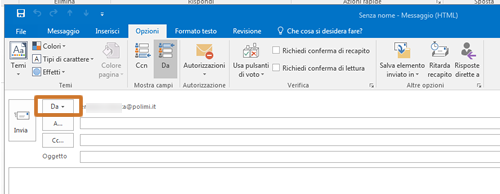
  • Back to Inbox
  • open a New message
  • select From: (sender)
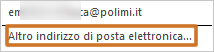
  • select Other email address
  • enter the email address with “send as” rights

Reference screen
3/3

Returning to New Message from the From: field, the second address will also be available and it will be possible to select it as the sender of the message.

You have finished the setup

Email

  • Email address
  • Functional email addresses
  • Mailing lists
  • Institutional mailing lists
  • FAQ and support

Help us improve this page

Scroll to top Scroll to top Scroll to top

This site uses cookies. By continuing to browse the site, you are agreeing to our use of cookies.

OKLearn more

Cookie and Privacy Settings


Privacy Policy

You can read about our cookies and privacy settings in detail on our Privacy Policy Page.

Private: Privacy Policy
AgreeDisagree