
Configuration with certificate – Windows
“Polimi-protected” and “eduroam” Wi-Fi networks
Wired TLS Access
15 Estimated minutes
Need help?
Check out our frequently asked questions or submit a support request.
Before you begin
Please complete these checks before starting setup.
Remove Wi-Fi Networks
- Select “Settings”
- Select “Network & Internet” > Wi-Fi > Manage known networks
- If there are “polimi-protected” and/or “eduroam” networks, select and remove them.
Do you have an expired certificate on your PC? Delete it.
- In the “Search” window on your PC, type “Certificates”
- Select “Manage user certificates”
- In the window that opens, click on “Personal” and then open the “Certificates” folder
- All certificates installed on the PC are shown with their expiration date.
- Select the expired ones from the Polytechnic and delete them.
Using a USB-Ethernet card? Insert and install it.
To enable wired network access, the card must be inserted and installed before starting the configuration.
Download the Eduroam installer
- Visit cat.eduroam.org
- Click on “Click here to download the program”
Schermata di riferimento

Institution selection
- From the side section that opens on the right, selecte “Politecnico di Milano”
If it is not present in the initial list, use the search engine.
Schermata di riferimento

Type download
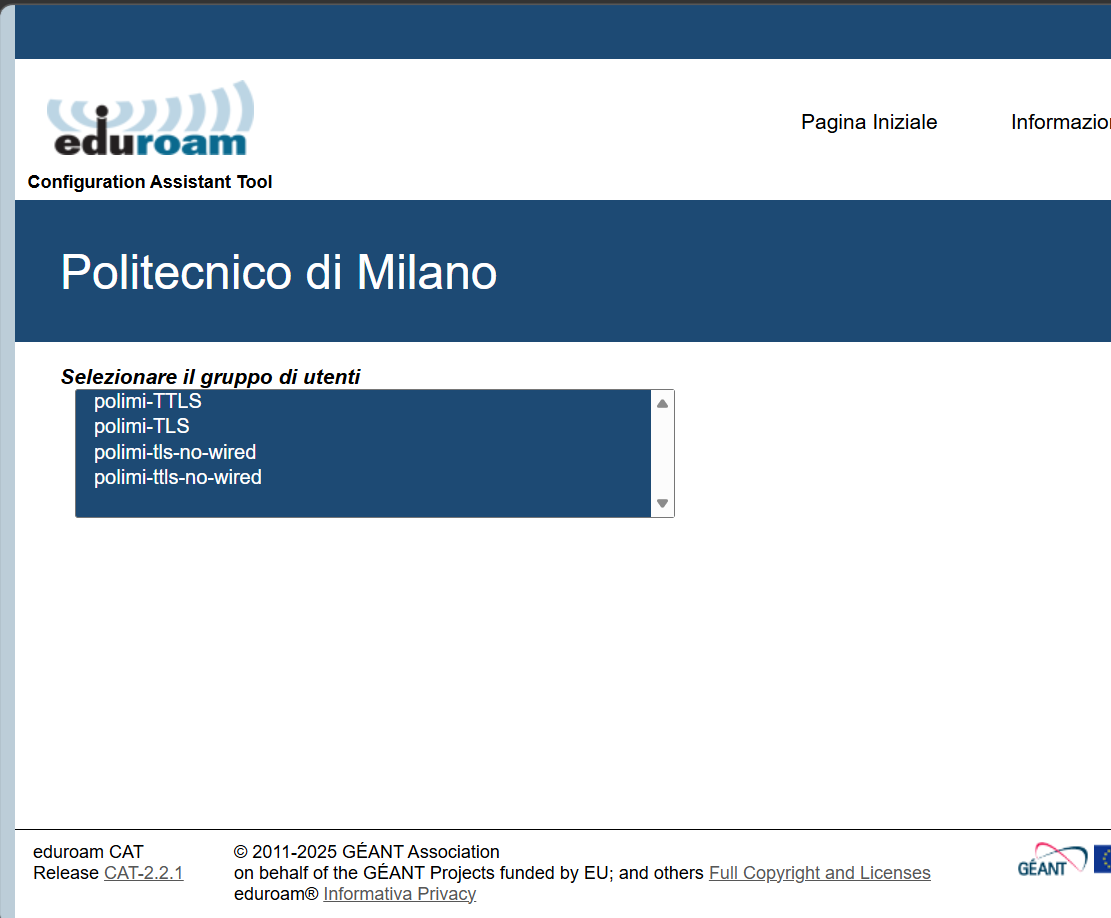
From the “Politecnico di Milano” page in Cat.Eduroam
- Select “polimi-TLS ”.
- Proceed with the download of the installer
Schermata di riferimento
Installation
Once the installer file is downloaded to your device:
- Run the installer file
- The installer asks to import a certificate:
- Select the Harica certificate obteined in the section Harica Certificate
- Proceed with the installation
- When prompted for a password, enter the passphrase you set when generating the certificate.
Network connection
Select”eduroam” or”polimi-protected” wireless network or connect the Ethernet cable.
If a pop-up message appears stating “Action required – you must log in or take other action to gain full access to the network”, click ” Log in “, select the certificate you just uploaded, and click ” Connect “.
You have finished the setup