
Configuration with certificate – IPhone and IPad
“polimi_protected” and “eduroam” Wi-Fi networks
10 minutes estimated
Need help?
Check out our frequently asked questions or submit a support request.
Before you begin
Please complete these checks before starting setup.
Have you already configured this device with Polimi networks? Remove them.
If you had previously configured the Polimi networks, we recommend that you “forget” them before proceeding with a new configuration.
Use the Safari browser
We recommend using Safari for setup. Other browsers are not fully supported.
Extract and install the certificate
Go to Settings and choose Profiles:
- Click on the Polimi Personal Certificate
(The certificate is usually saved in the Download folder and has the .p12 extension)
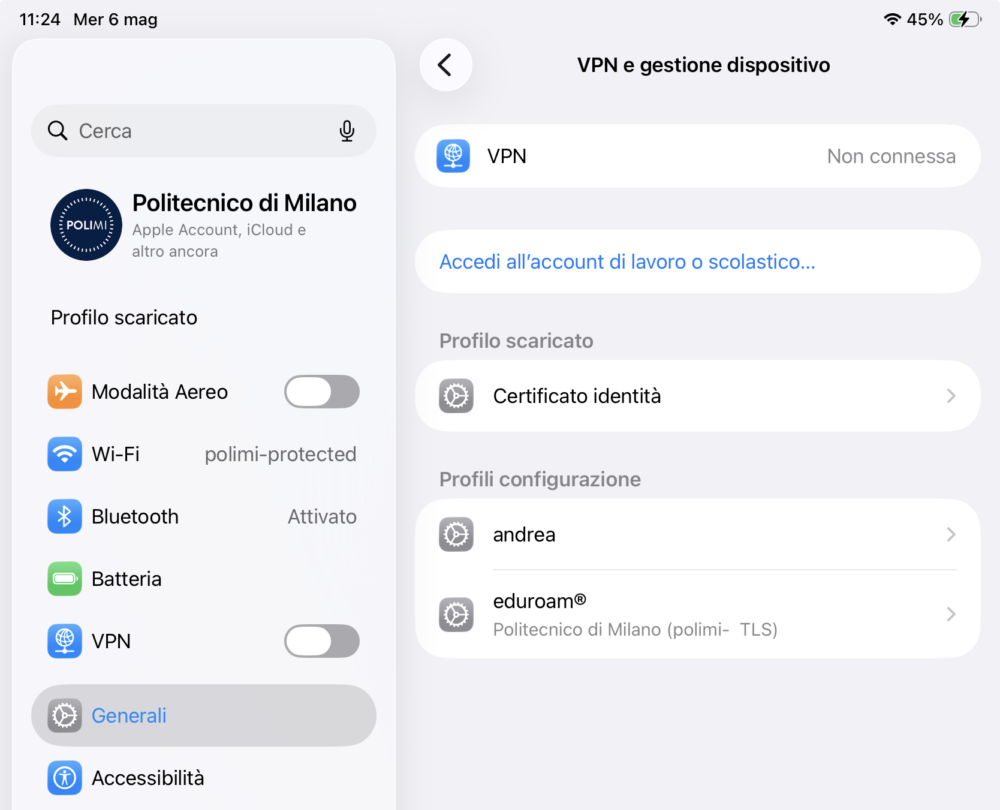
a popup will appear “Profile downloaded / if you want to install it, review the profile in the settings app. - Go to Settings and choose General > VPN & Device Management:
- Under “Downloaded Profile”, click on “Identity Certificate”
- Select the profile with your first and last name and press “Install”.
- When prompted, enter your password.
Schermata di riferimento
Download the Eduroam Cat installer
- Go to https://cat.eduroam.org
- Click “Click here to download your eduroam installer”.
- Select Politecnico di Milano as your affiliation organization. If it’s not in the initial list, use the search box.
- Select user group: polimi-TLS
- Click on the button with your Operating System.
- Download the installer .
- A pop-up will appear saying “Profile downloaded. If you want to install the profile, check it in system settings.”
Install the Eduroam profile
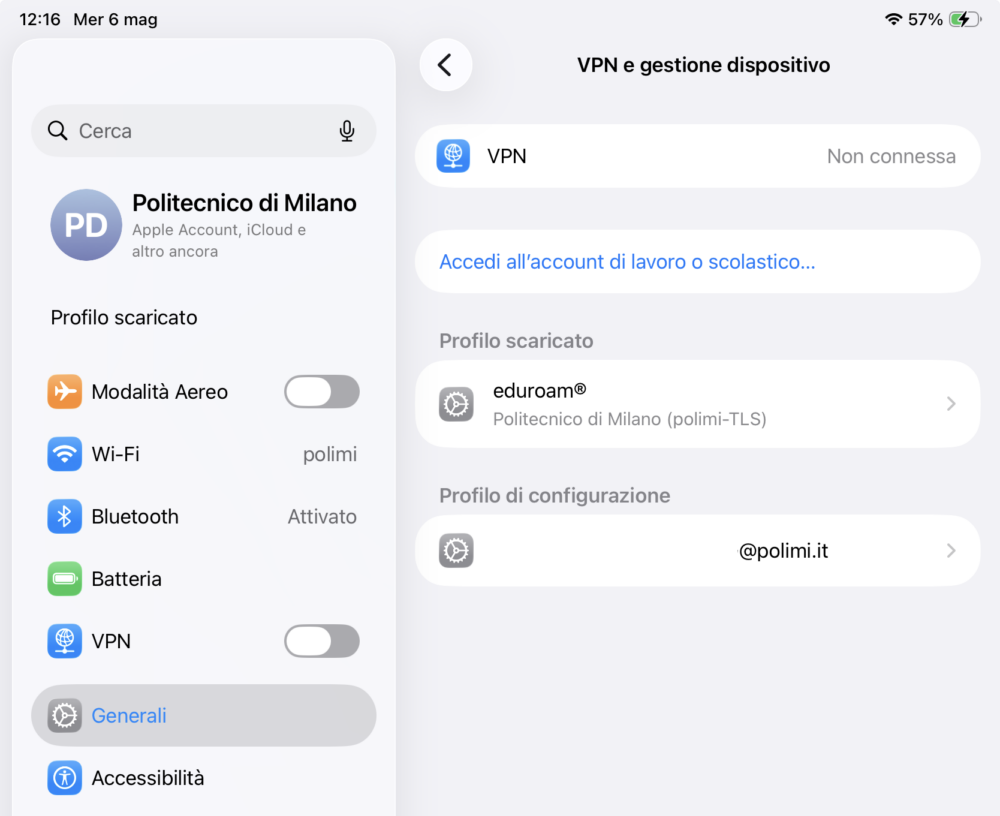
Go to Settings and choose General > VPN & Device Management :
- under “Downloaded Profile”, click on “eduroam”
- Click Install
Schermata di riferimento
Network configuration
In the list of available Wi-Fi networks:
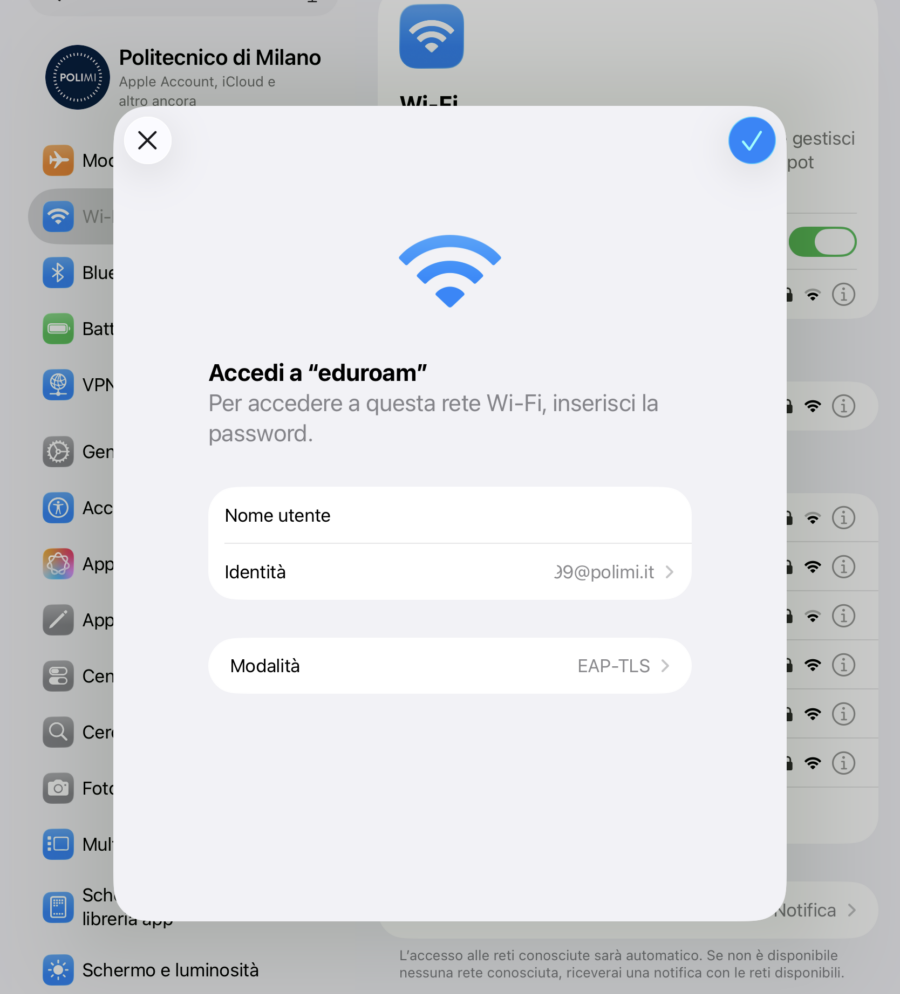
- Select “eduroam” or “polimi-protected”, depending on the network you want to configure.
- Change these network parameters:
– Mode to TLS
– Identity: select the certificate (Name Surname 12345678@polimi.it) - Username: Leave blank
- Click on Login
Schermata di riferimento
You have finished setting up your first Wi-Fi network.
- Repeat step 4/4 to set up the second Wi-Fi network as well.
- The certificate expires two years after it is generated; you’ll receive an email notification approximately 15 days beforehand.
Upon expiration, the connection will stop working, and you’ll need to reconfigure it with a new certificate.