
Configuration with Polimi Credentials – Windows
“Polimi-protected” and “eduroam” Wi-fi networks
Wired TTLS access
15 estimated minutes
Need help?
Check out our frequently asked questions or submit a support request.
Before you begin
Please complete these checks before starting setup.
Remove Wi-fi networks
- Select “Settings”
- Select “Network & Internet” > Wi-Fi > Manage known networks
- If there are “polimi-protected” and/or “eduroam” networks, select and remove them..
Using a USB-Ethernet card? Insert and Install it.
To enable wired network access, the card must be inserted and installed before starting the configuration.
1/4
Download Eduroam Installer
- Visit cat.eduroam.org
- Press”Click here to download your Eduroam installer”
Schermata di riferimento

2/4
Institution selection
- From the side section that opens on the right, select “Politecnico di Milano”
In If it is not present in the initial list, use the search engine.
Schermata di riferimento

3/4
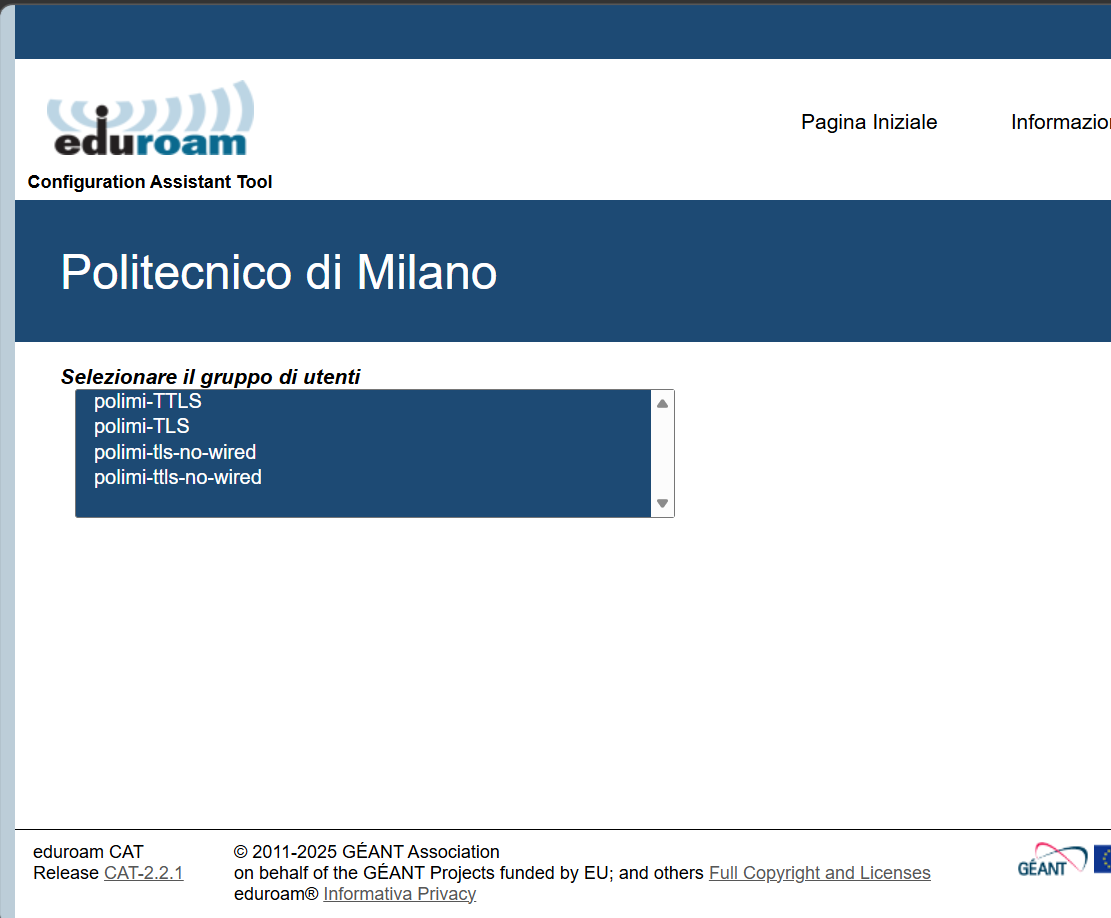
Select Type installer
From the “Politecnico di Milano” page in Cat.Eduroam
- Select “ polimi-TTLS ”
- Proceed with the download of the installer
Schermata di riferimento
4/4
Installation
Once the installer file is downloaded to your device:
-
- Run the Eduroam installer file
- Enter the following in each window:
- Username:: your personal code followed by @polimi.it (e.g. 1234567@polimi.it)
- Password: the one relating to the person code
- Proceed with the installation
You have finished the setup