
Configuring with Polimi Credentials – Mac OS X
“Polimi-protected” and “eduroam” Wi-Fi networks
Wired access
10 Estimate minutes
Need help?
Check out our frequently asked questions or submit a support request.
Before you begin
Please complete these checks before starting setup.
Keep your Polimi credentials available
Make sure you have your Polimi credentials (personal code and password) in order. You can check your password status or set a new one using the authentication widget available in Online Services.
Using a USB-Ethernet card? Insert and install it.
To enable wired network access, the card must be inserted and installed before starting the configuration.
Download the Eduroam Cat installer
- Go to https://cat.eduroam.org
- Clicca: “Click: “Click here to download your eduroam installer.”
- Select Politecnico di Milano as your affiliation organization.
If it’s not listed, use the search engine. - Select polimi-TTLS as the user group and download the installer. A popup will appear saying “Profile downloaded / If you want to install the profile, verify it in system settings.”
Run the eduroam installer
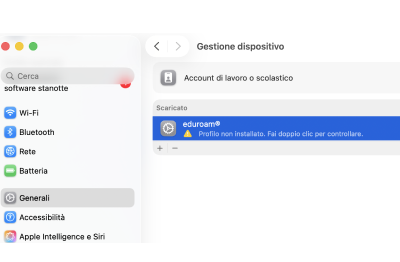
- Open System Settings > General > Device Management
- Under “Downloaded Profile”, click on “eduroam”
- At the confirmation message, press “Install” to begin.
The profile contains the configuration of two Wi-Fi networks (“eduroam” and “polimi-protected”) and advanced wired access.
Three screens will appear for entering your Polimi credentials: two for Wi-Fi networks and one for a wired network.
Enter the following in each window:
- Username:: your personal code followed by @polimi.it (e.g. 1234567@polimi.it)
- Password: the one relating to the person code
Schermata di riferimento
Finalization
- When prompted, enter your computer credentials and press OK.
- Wait for the final screen
Schermata di riferimento

You have finished setting up your first Wi-Fi network and wired access.